

Tips & Tricks



Running JUnit 4 Tests in IntelliJ IDEA 5.1
Note: The tip was originally posted at t800t8.blogspot.com by t800t8
Although the full JUnit 4 support will be added only in IntelliJ IDEA 6.0, you can run JUnit 4 tests right now, in the 5.1 release. Just follow the instructions below.
Note: Of course, you need to add the JUnit 4 JAR file to the classpath first.
1. Click Settings | File Templates.
2. In the Templates tab, create new template and name it “JUnit 4 Test Class” or anything you like.
3. Paste the following code fragment into the text box:
package ${PACKAGE_NAME};

   import org.junit.*;
   import junit.framework.JUnit4TestAdapter;

   #parse("File Header.java")
   public class ${Name} {
       public static junit.framework.Test suite() {
           return new JUnit4TestAdapter(${Name}.class);
       }

       @Before
       public void setUp() {
       }

       @After
       public void tearDown() {
       }

       @Test
       public void testSomething() {
       }
   }
You can see the results on the screenshot.
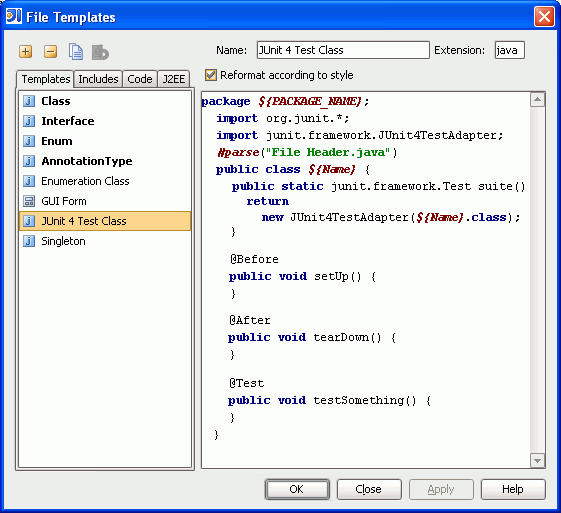
After you apply the chages, use this template to create JUnit 4 test classes. To run the tests, simply click Run.
Enjoy it and happy unit testing!
Technorati tags: JUnit4
Prev post JetBrains Products Win Jolt Productivity AwardsJetBrains at Russian JUG in Saint-Petersburg Next post
Subscribe to IntelliJ IDEA Blog updates


