Automatically Building Pull Requests from GitHub

Scenario
You’re running an OSS project* and someone makes a pull request. You’ve got two choices:
- Merge and Pray
- Pull to local branch, build, run tests and merge if all OK
What do you do? Well, what is it going to be?
I know what I’d like to do, and GitHub makes it so so tempting:

But unfortunately I go with the second option.
That’s a pain, specially if you do a quick code-review and things look decent. Yet you still need to make sure that it builds and all tests pass.
Well there is a third way. And what’s even nicer, is that it’s also possible with TeamCity.
*This applies to non-OSS too
Automatically Building All Pull Requests
What I want to do is have TeamCity automatically build all Pull Requests for me of my main repository, and notify me if it is successful. And I want this to happen without me having to configure every single fork as a repository in TeamCity, because like that, it wouldn’t be manageable. Here’s a diagram explaining it:

This will drastically improve the workflow since we no longer have to manually create a local branch of the pull request, check it, build it and only then merge it.
Configuring TeamCity
Setting up TeamCity to do this is really simple. It actually only requires one thing: configuring the Branch Specification under the VCS root:

Let’s see what this means and why it works. When a pull request is made, GitHub automatically creates a reference that holds the pull request as well as one that is a merge with the master branch. What we’re saying to TeamCity is to monitor this branch, in addition to the main branch. In this syntax, pull refers to the pull request. The * refers to ANY pull request, and the merge indicates that we’re interested in the pull request merged with the master branch. This means that when TeamCity builds, it will build the branch that was merged. If we want to build the branch, without merging, we could use the following:
+:refs/pull/*/head
So to recap, adding merge builds the result of the merge, and adding head, just the pull request without the merge.
The result of these builds show up in TeamCity like so:
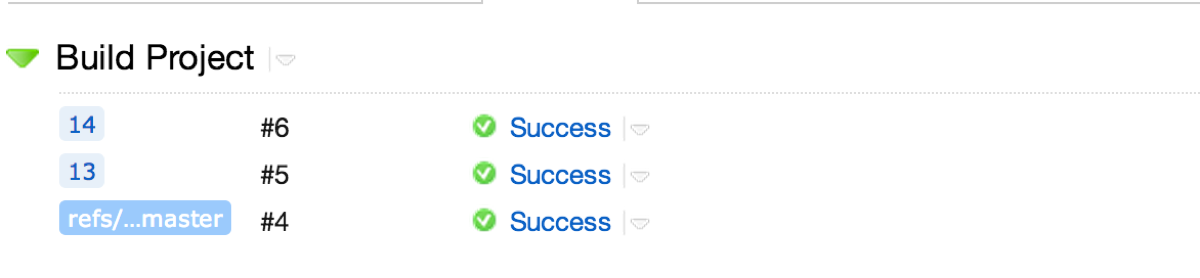
where the number denotes the pull request. Now, we can actually make this a bit nicer by allowing us to see whether the particular request was the result of a merge or just the branch itself. For that, we can specify the following in the Branch Specification
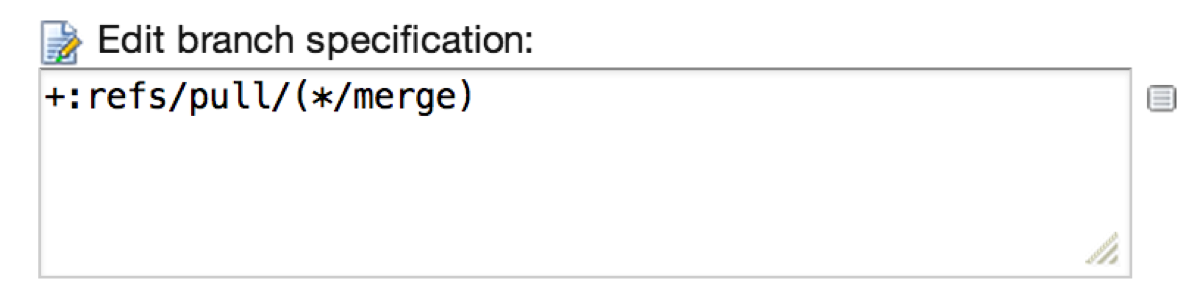
with TeamCity now indicating whether this was a merge or head:

In addition, TeamCity also provides us with a Dropdown, where we can filter all the different pull requests:

Seeing notifications on the Pull Request
As this is a normal build, like any other build, we can configure TeamCity to receive notifications via email, tray icon, etc, both on successful builds as well as failed builds. However, there is one other thing that we can do: see the result of the build on the Pull Request page on GitHub. In order for this to happen, we do need to install a plugin for TeamCity which currently doesn’t ship out of the box. This plugin, written by Eugene Petrenko uses some hooks GitHub provides to add notification information on the Pull Request page.
To install it, download the plugin as a zip file and place it in the plugins folder of the server and restart the server.
Once that’s installed, we can now display build status information on the GitHub pull request by adding a Build Feature to our Build Steps:

and filling in some simple configuration parameters:

And with that, we can see the status on the Pull Request page on GitHub.

* If you’re running your OSS project on TeamCity at CodeBetter, you now have this plugin available.
Summary
Although my example was based on TeamCity 8.0 which is currently in EAP, this feature also works with TeamCity 7.1.3+ (and even previously covered by others). The examples are also based on OSS projects, but you can apply the same workflow to private repositories also, hopefully making things a little bit easier.

Subscribe to TeamCity Blog updates